Day 4 of 5
See what changed, and what repeats
Contrast marks what changed between two versions of a text. Compare finds passages that repeat within one document, or that two documents share.
What this takes out of the job: reading two versions side by side to spot the edits yourself.
Every feature is free to try for 14 days or 14 hours of use, whichever comes later.
Contrast
Two versions, every difference marked
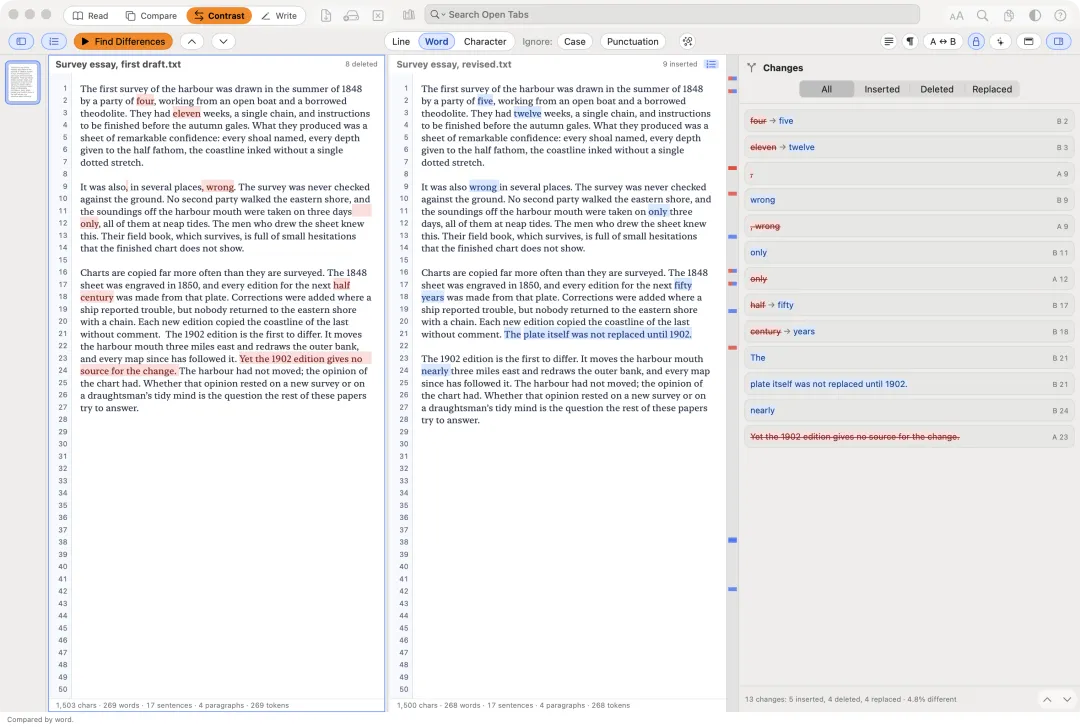
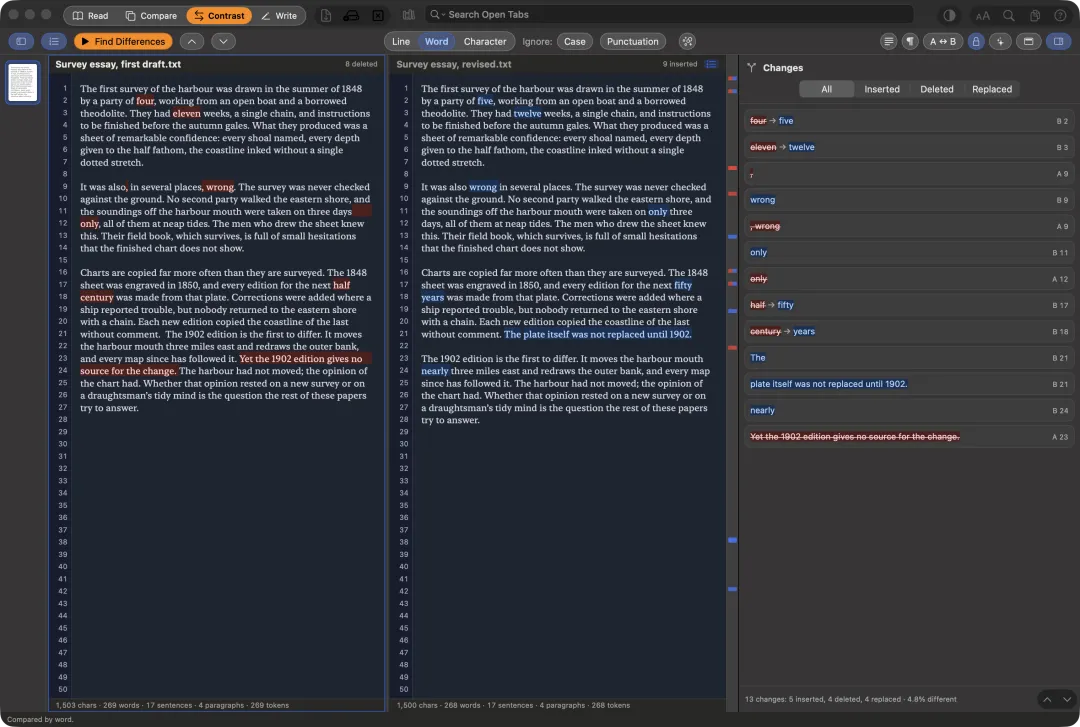
Click Contrast in the mode switcher (⌘4). Put the old version in Original (A) and the new one in Changed (B), then click Find Differences (Return).
- Inserted text is blue and deleted text is red. A replacement shows both.
- Step through the changes with ← and →. The Changes panel lists each one as a card, and you can filter it by All, Inserted, Deleted or Replaced.
- See the two versions side by side, or inline in one pane with the changes marked in the text. V switches.
- Find differences by Line, Word or Character (1, 2, 3). Word is the default and suits documents. Character suits small edits, punctuation and spelling. Line is fastest.
- Reflow Paragraphs (R) joins line breaks inside paragraphs before comparing, so text rewrapped at different places does not show as changed. Word and Character already compare the words from start to end; use Reflow with Line, and for text copied from a PDF. Your text is never changed.
Compare
Find the passages that repeat
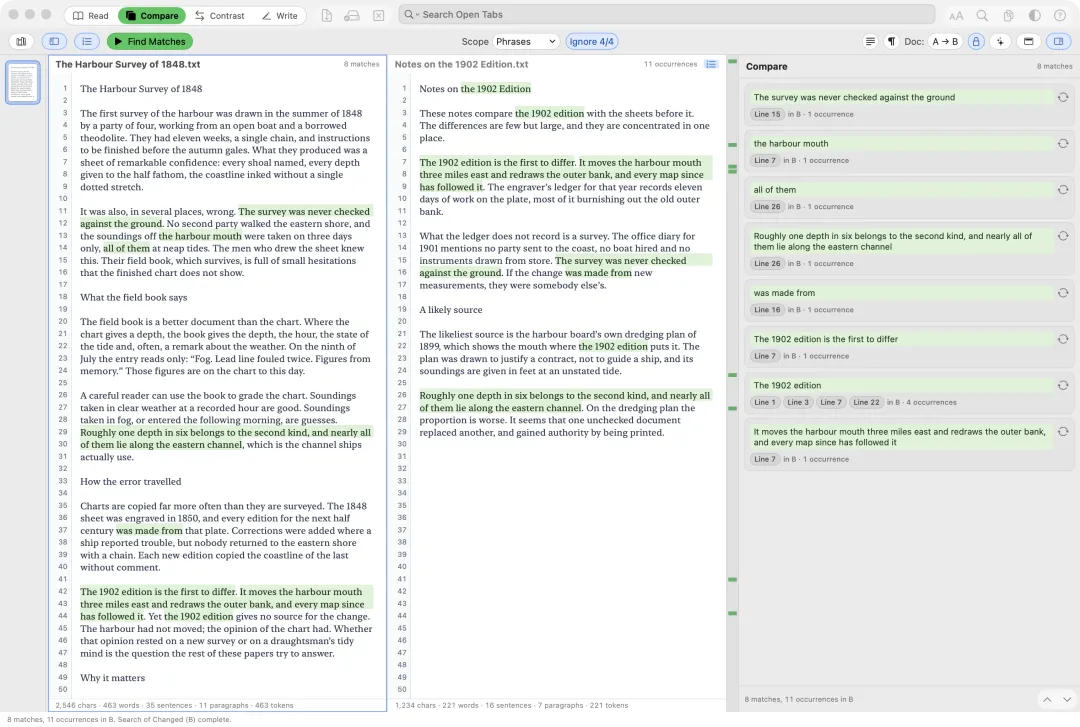
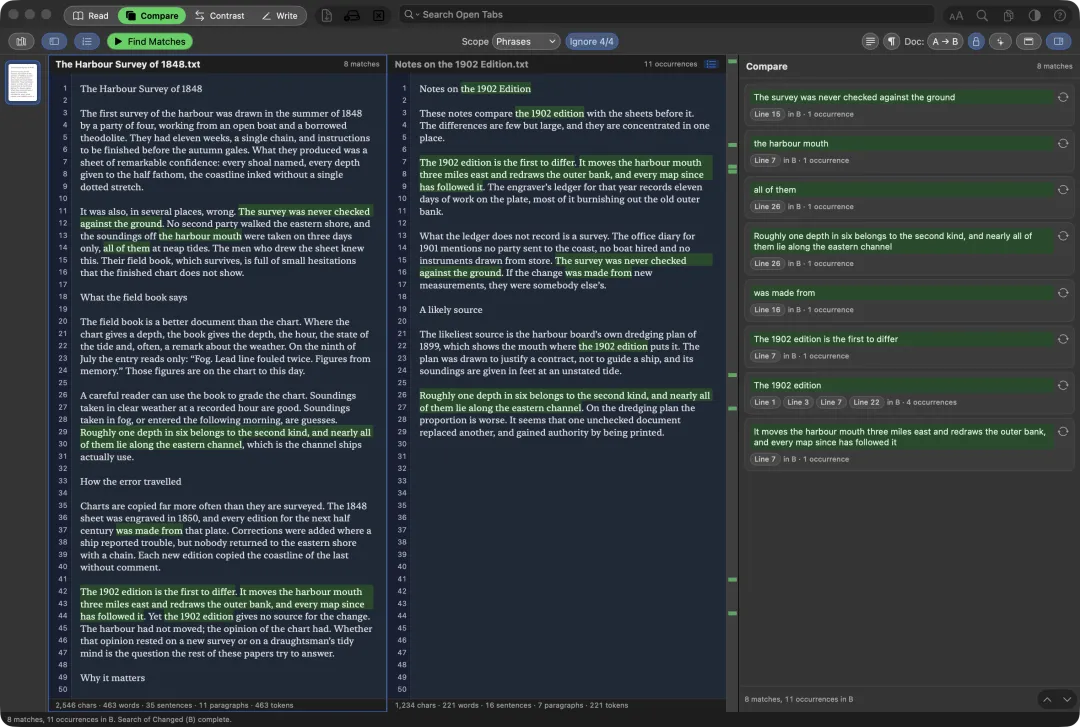
Click Compare in the mode switcher (⌘3). Put a document in Original (A), choose a Scope and click Find Matches (Return).
- Side A finds passages repeated within one document. A → B finds passages of A that also appear in Changed (B), in two panes. V switches.
- The scope sets what a match is: a run of words, a phrase, a sentence or a paragraph.
- The Ignore options (case, punctuation, whitespace and common words) leave small differences out, so near-identical passages still match. All four start on.
- Matches show as cards in the sidebar and as highlights in the text. Click a place on a card (such as “Line 14”) to go there.
Try it yourself
You need two versions of something you have written, and one longer document.
- Click Contrast in the mode switcher (⌘4).
- Open the old version in Original (A) and the new one in Changed (B), or paste them.
- Click Find Differences (Return). Step through the changes with ← and →.
- Press V to switch between side by side and inline.
- Click Compare in the mode switcher (⌘3) and put a document in Original (A).
- Choose a Scope and click Find Matches (Return). Click a card in the sidebar to go to each place the passage appears.
Quick summary
- Contrast (⌘4) compares Original (A) with Changed (B): inserted text is blue, deleted text is red.
- Step through the changes with the arrow keys, side by side or inline, by line, word or character.
- Reflow joins line breaks so rewrapped text is not shown as changed. Your text is never changed.
- Compare (⌘3) finds passages repeated within one document, or shared by two.