Day 2 of 5
Take notes that remember what was said
Write is a notebook that records audio as you write. Every word and stroke remembers its moment, so you can hear what was being said when you wrote it. Today: recording notes, and Review.
What this takes out of the job: scrubbing through a recording to find the moment you meant.
Every feature is free to try for 14 days or 14 hours of use, whichever comes later.
Write
Notes you can click to hear
Click Write in the mode switcher (⌘2), click Record (⇧⌘R) and take notes: type, draw with Ink, highlight.
- ⌥-click a word to hear what was being said when you wrote it. ⌥-click a stroke to play from when it was drawn. ⌥-double-click plays from the start of the line, ⌥-triple-click from the start of the sentence.
- While a note plays, the words written at that moment are highlighted.
- Playback starts a little before the moment, because notes are written just after they are heard. By default that is 2 seconds.
- With a Word, RTF, Markdown or text document open in Write, Record adds the recording to that document. A Word file stays an ordinary Word file; the recording is saved beside it.
- A Docuria Note holds text, ink, paper, timing and recordings in one file that only Docuria opens. Save as Word or PDF to share.
Sources
The microphone, and optionally your Mac’s audio
Docuria asks for the microphone the first time. It records from the system input unless you choose another in Write › Microphone.
- Turn on Write › Record Mac Audio to record the sound playing on this Mac together with the microphone, such as an online lecture. Docuria’s own sound is left out.
- The first time, macOS asks whether Docuria may record this computer’s audio.
- Recordings are about 7, 11 or 15 MB an hour, depending on Settings › Write › Audio quality (Compact, Standard or High).
Review
Check a draft before you send it
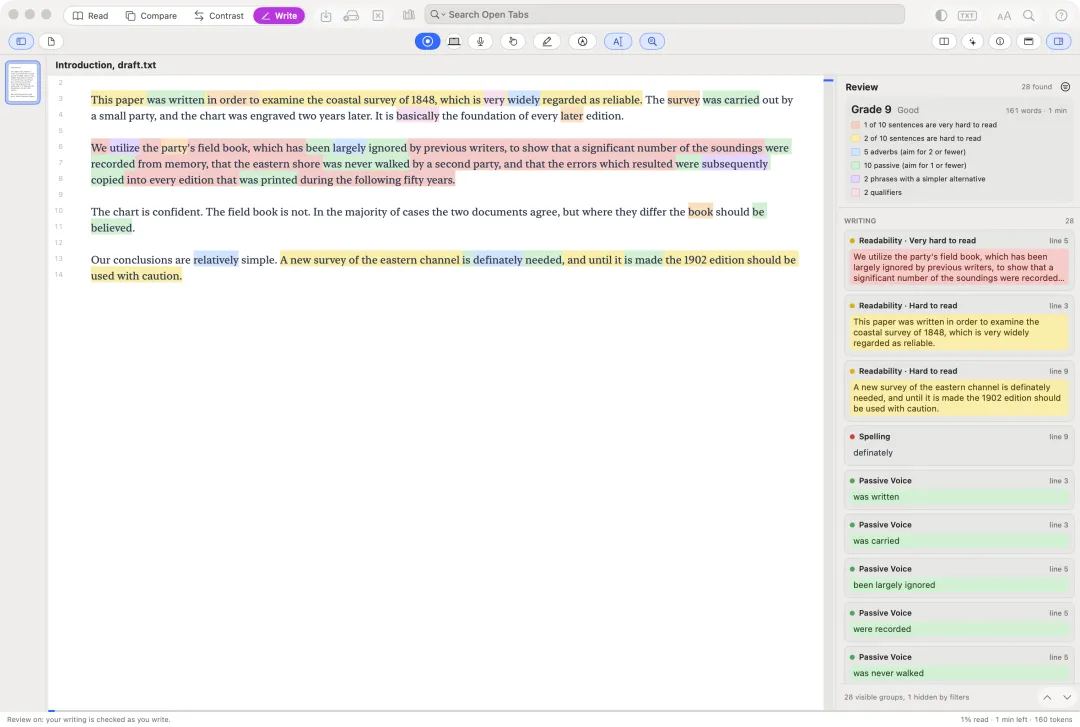
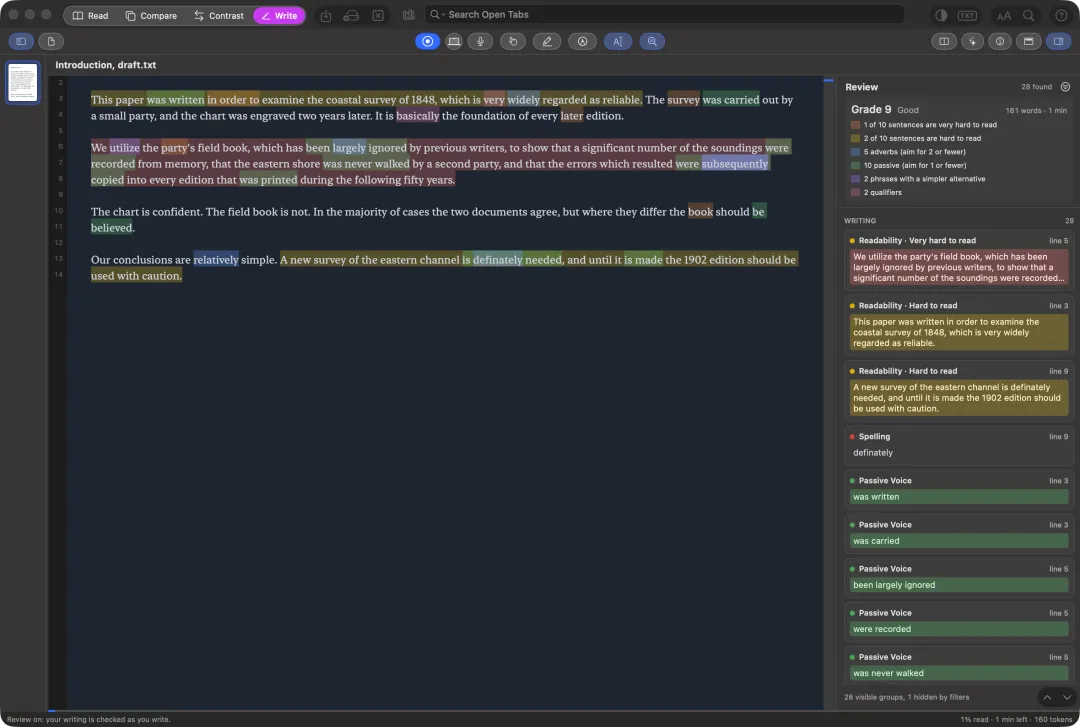
Review checks what you write for hard sentences, adverbs, passive voice, simpler words, spelling, grammar and style.
- Findings are marked on the page and listed in the right sidebar, with a readability grade (9 or lower reads well).
- Click a line in the list to open its card: why it matters and, where there is one, a revision to accept. Accept puts it into the document as an edit (⌘Z undoes it); Dismiss stops flagging it.
- Docuria’s own checks need no AI. Spelling, grammar and the writing checks run on your Mac. Proofread with AI is separate: it sends text to the AI model you chose, and a service asks first.
The findings are guidance: a passive or long sentence can be right. Review works on notes and on Word, RTF, OpenDocument, Markdown and text documents, not on PDF pages or ebooks.
Try it yourself
You need something to record and a short draft. A video or a talk playing on your Mac will do for the first.
- Click Write in the mode switcher (⌘2).
- Click Record (⇧⌘R). Docuria asks for the microphone the first time.
- Take a few notes while something is said. Click Record again to pause, or Stop (⌥⇧⌘R) to end the recording.
- ⌥-click a word in your note. Docuria plays from the moment you wrote it.
- Open a draft in Write: a note, or a Word, RTF, OpenDocument, Markdown or text file. Click Review in the control bar.
- Click a finding in the sidebar to open its card, then accept it or dismiss it.
Quick summary
- Write records audio while you take notes. Every word and stroke remembers its moment.
- ⌥-click a word to hear what was being said when you wrote it.
- It records the microphone, and optionally the sound playing on your Mac.
- Review marks hard sentences, adverbs, passive voice, simpler words, spelling, grammar and style, with a readability grade.
- Review is guidance, and works on notes and text documents, not PDF pages.