Day 3 of 5
Search your folders by what a passage means
Add a folder and Docuria indexes it where it is, so one search field covers what you keep. Ask a question or describe an idea, and it finds the passages about it. Today: the library and meaning search.
What this takes out of the job: opening folders and files one at a time to find a passage.
Every feature is free to try for 14 days or 14 hours of use, whichever comes later.
Library
Index a folder where it is
In Settings, open Databases and click Add Folder…. Docuria indexes the PDF, Word, RTF, Markdown, text and OpenDocument files in it and its subfolders, in the background.
- Docuria only reads your documents. It never changes, moves or copies them. If you take a folder out, its documents leave the index and the files stay on disk.
- Docuria asks whether to index the folder as Keyword or Keyword + Meaning, with an estimate of the time and space.
- Words are indexed first, so you can search by words at once while the meaning index fills in.
- By default Docuria indexes only while your Mac is on power, so plug in a laptop. It also waits in Low Power Mode and while the Mac is hot.
Meaning search
Ask by idea, not only by word
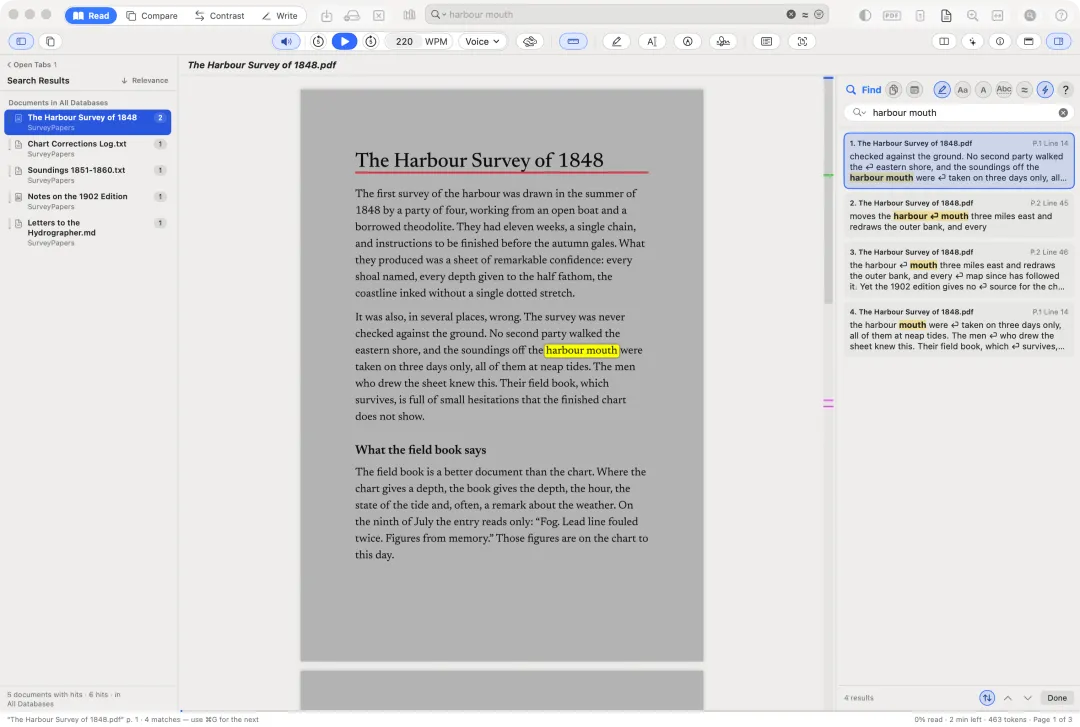
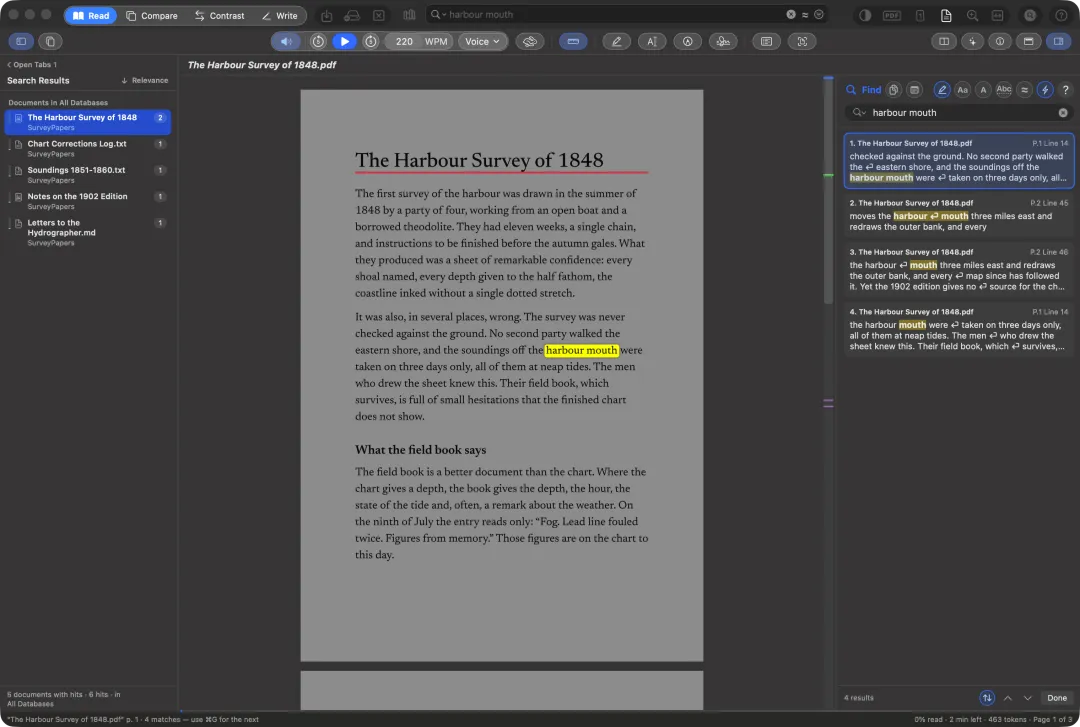
Type in the search field in the title bar (⌘L). Click Words at its right and choose Meaning or Both, then type a question or describe an idea.
- Each document is listed once, with its best passage under its name. Click a result to show the passage on the page; ⌘G steps to the next result’s passage.
- Both searches by words and by meaning together, and is usually the most accurate. For names and exact phrases, Words or Both works best.
- The meaning model is a one-time 1.2 GB download, after you accept its licence. It runs on this Mac: your documents and searches never leave it. The meaning index adds about 220 MB per 10,000 pages.
- The title-bar search works in every mode, across your open tabs and the library.
AND, OR, NEAR and quotation marks do not change a meaning search: your words are read as one question.
Filters and saved searches
Narrow a search and keep it
The same field takes filters, and a search you run again can be saved.
- Fields such as tag:, kind:, folder:, created:, modified: and size: narrow the search. An example: kind:pdf modified:2024 before your words. Typing after tag:, kind:, ext: or folder: lists your values with their counts.
- Show the Databases sidebar (⌥⌘4) and click + beside Saved Searches. Name the search and press Return. Deleting a saved search never removes documents.
Try it yourself
Pick a folder of documents you already have. Docuria will not change it.
- Open Settings, choose Databases and click Add Folder…. Choose the folder.
- Choose Keyword + Meaning when Docuria asks. The first time, accept the meaning model’s licence and let it download (1.2 GB).
- While it indexes, type a word in the search field in the title bar (⌘L). Searching by words works straight away.
- Click Words at the right of the field and choose Meaning. Type a question, or describe an idea.
- Click a result to show its passage on the page.
- Try Both. Then type kind: in the field and pick a value to narrow the search.
Quick summary
- Settings › Databases › Add Folder indexes a folder where it is. Docuria never changes, moves or copies your documents.
- Index as Keyword, or Keyword + Meaning. Words are searchable first.
- Meaning search needs a one-time 1.2 GB model download, and runs on your Mac.
- The title-bar search works in every mode. Narrow it by tags, kinds, dates and size, and save searches.
- Indexing runs only on power by default.