Day 1 of 5
Have a PDF read to you, with every word highlighted
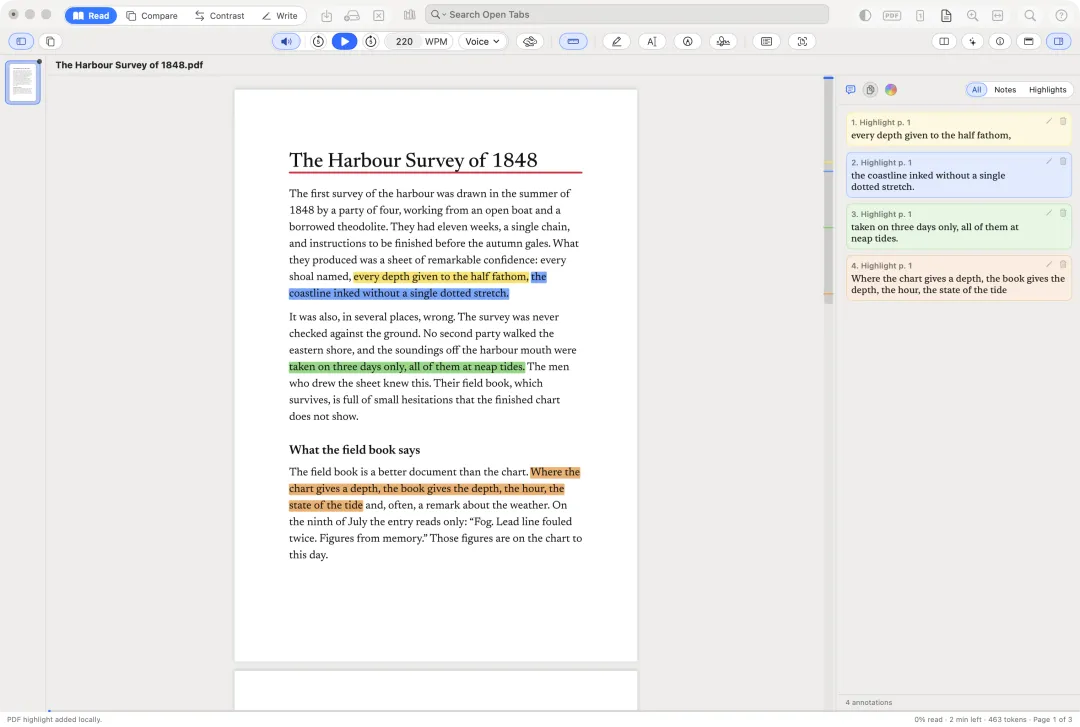
Docuria reads the page aloud and marks each word as it is spoken, so you can follow along on the page. Today: Listen, the speed field with Speedread, and highlights and notes.
What this takes out of the job: keeping your place on the page yourself while you read.
Every feature is free to try for 14 days or 14 hours of use, whichever comes later.
Listen
Follow along as it reads
Click Listen in the control bar and press Space. Docuria reads the page aloud and highlights each word as it is spoken.
- Right-click a word and choose Read From Here to start somewhere else. Right-click selected text and choose Read Selection to read only that.
- Running headers, footers and page numbers are skipped.
- Headphone and keyboard media keys play, pause and skip while Listen plays.
- The Voice menu in the Listen group chooses the system voice or a voice you have downloaded.
With a downloaded neural voice the word highlight is estimated, so it can run slightly ahead or behind.
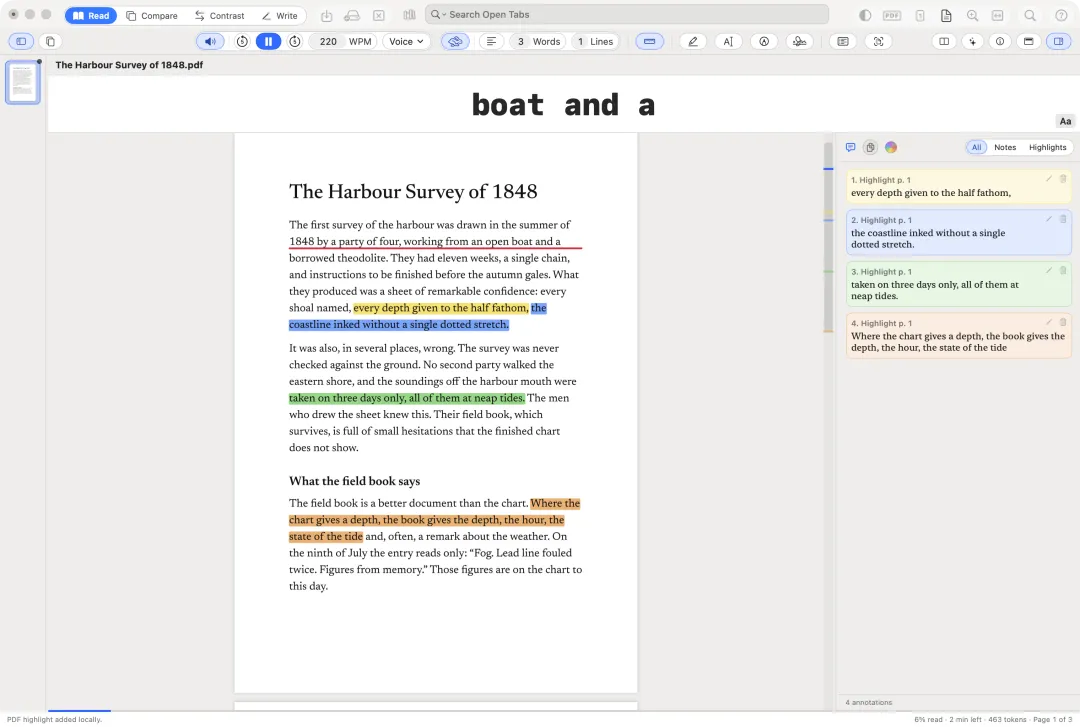
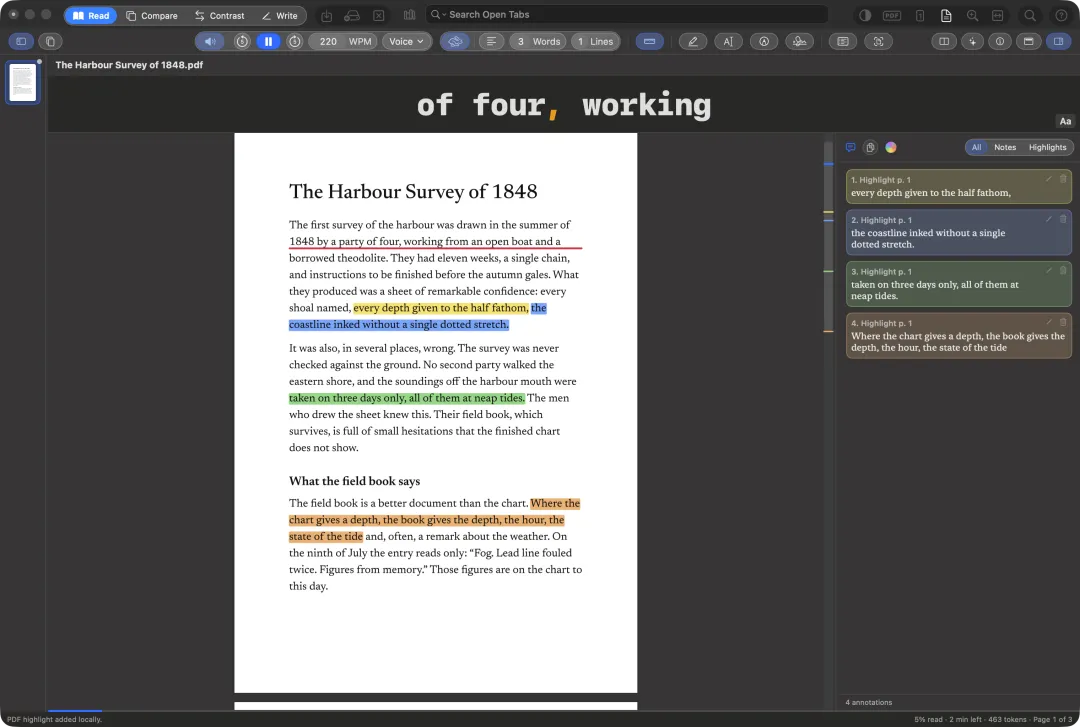
Speed and Speedread
Set the pace you read at
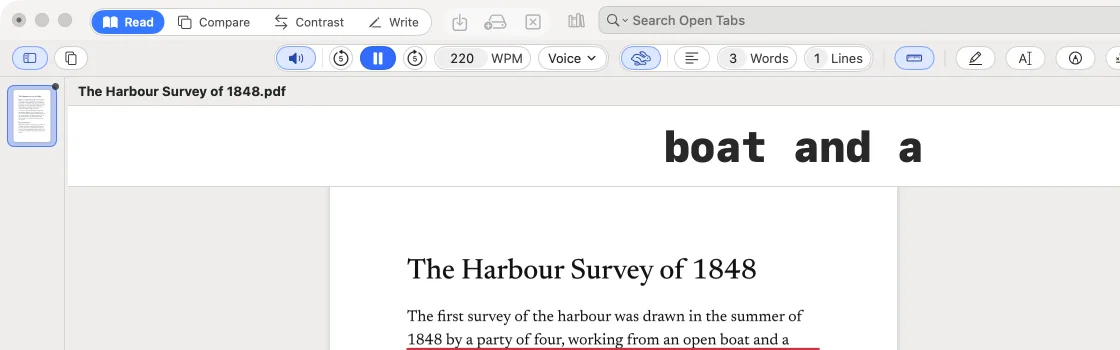
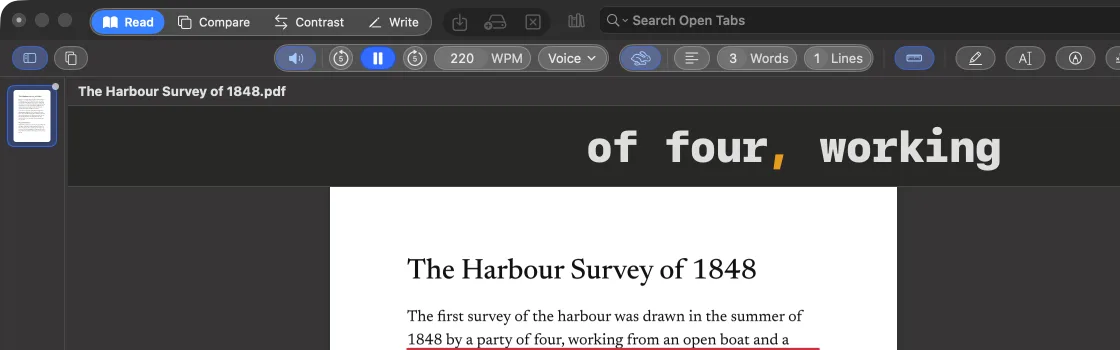
The speed field next to play shows words per minute, or a multiple of the voice’s natural pace. Option-click it to switch between the two.
- Drag the field sideways to change the speed, or double-click it to type words per minute. It runs from 60 to 1600.
- With Listen on, each voice has a top speed (below). For faster, turn Listen off and use Speedread or the Ruler, which go up to 1600 words per minute.
- Speedread shows the text a few words at a time in a panel, from 1 to 20 words a line. Press Space to play at the speed in the speed field, with or without audio. With Listen on, Speedread follows the spoken word.
- The Ruler marks the line or word being read, and can scroll the page along.
| Apple voices | 880 |
|---|---|
| Kokoro | 550 |
| Supertonic | 500 |
| Qwen3-TTS | 400 |
Annotate
Mark what matters as you go
Highlight, underline and add notes in the same window you read in.
- Seven colours. Select text, then click a colour in the bubble or press 1 to 7. Turn Highlight on (H) and selecting text marks it at once.
- Underline and Strikethrough are in the same group. Choose Note to add a note to a selection, or click blank space for a note there.
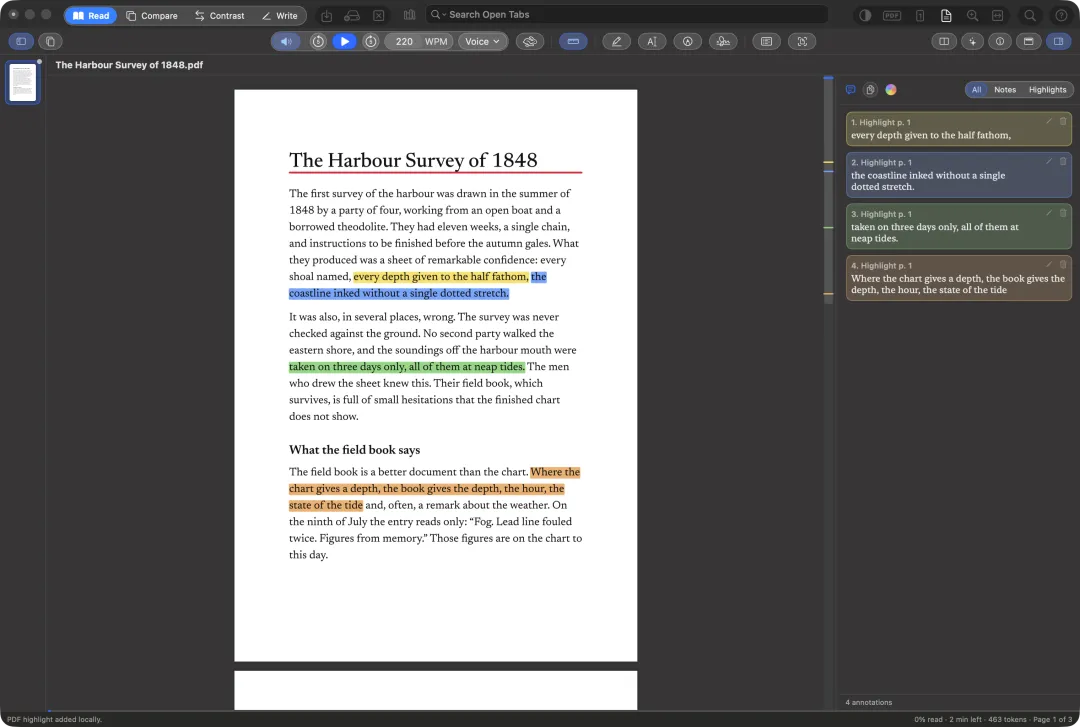
- The annotation sidebar lists every mark, so you can find them all again.
- Press ⌘S to write them into the PDF. They are standard PDF annotations, so other PDF apps show them.
Try it yourself
Open any PDF you have. These steps take you through all three.
- Choose File › Open… (⌘O) and pick a PDF, or drop it on the window.
- Click Listen in the control bar, then press Space to play or pause.
- Right-click a word further down the page and choose Read From Here.
- Drag the speed field sideways to change the speed. Option-click it to switch between words per minute and a multiple of the voice’s pace.
- Click Speedread in the control bar and press Space to play at that speed.
- Select a passage and click a colour in the bubble, or press 1 to 7, to highlight it.
Quick summary
- Listen reads the page aloud and highlights each word as it is spoken.
- Right-click a word and choose Read From Here to start anywhere on the page.
- The speed runs from 60 to 1600 words per minute. With Listen on, each voice has a top speed.
- Speedread and the Ruler go faster than the voices, with Listen off.
- Highlights, underlines and notes are listed in the annotation sidebar.